Author a whole Canvas course in one place.
Write every page, assignment, quiz and discussion in one workspace, then compare the course with Canvas and apply the changes you choose.
Gingham is invite-only right now.
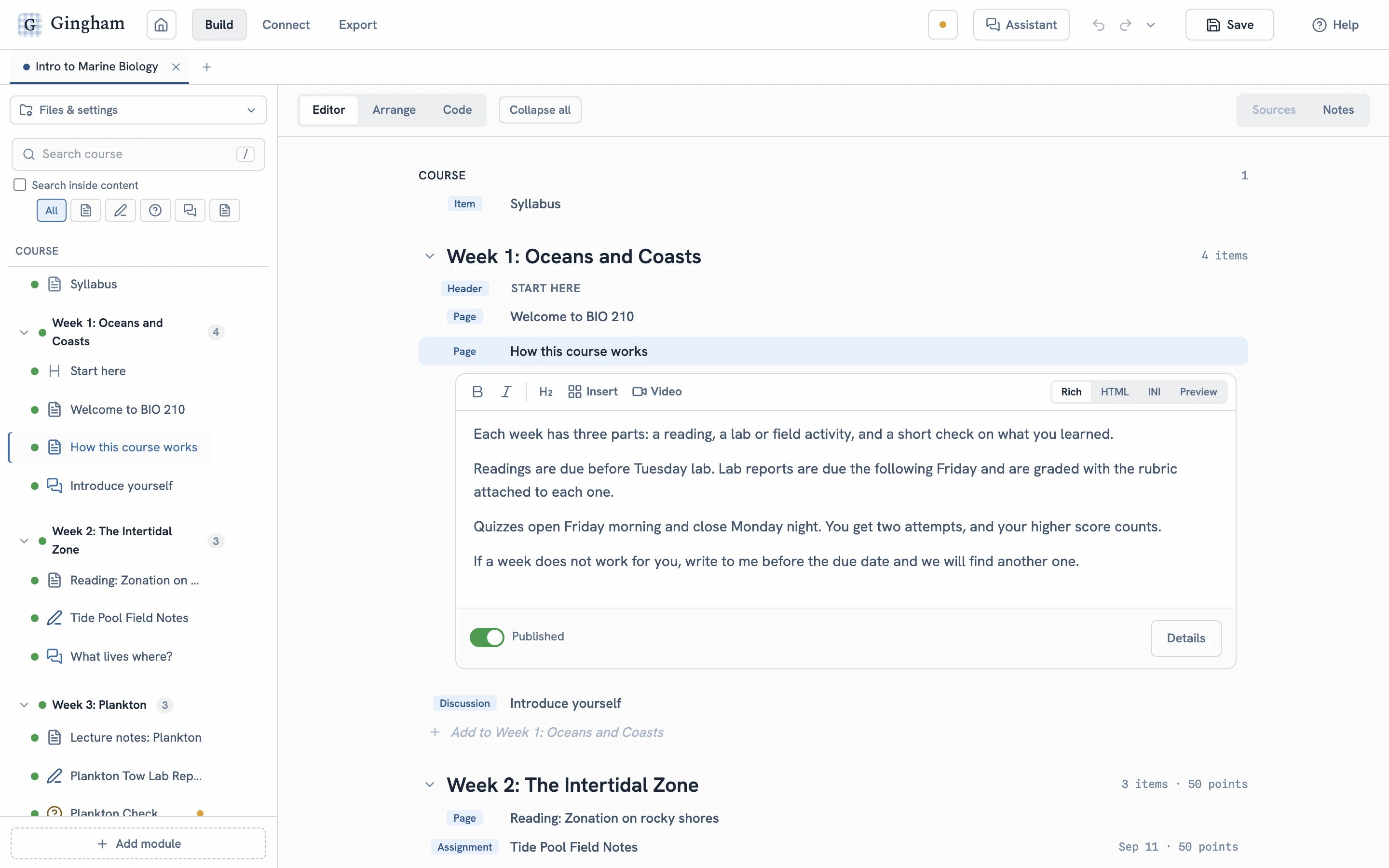
Start from what you have
- .imsccA Canvas course export
- CanvasA live course, pulled from your Canvas
- .docxAn outline in a Word document
- OutlineA typed outline, or a blank course
Built for writing whole courses.
Pages, assignments, quizzes, discussions, rubrics and question banks live in one outline, in the order students will meet them, with each item’s Canvas settings a click away.
Write in a rich editor or in HTML. Insert components, from section headers to accordions and tabs, and preview each one before you insert it.
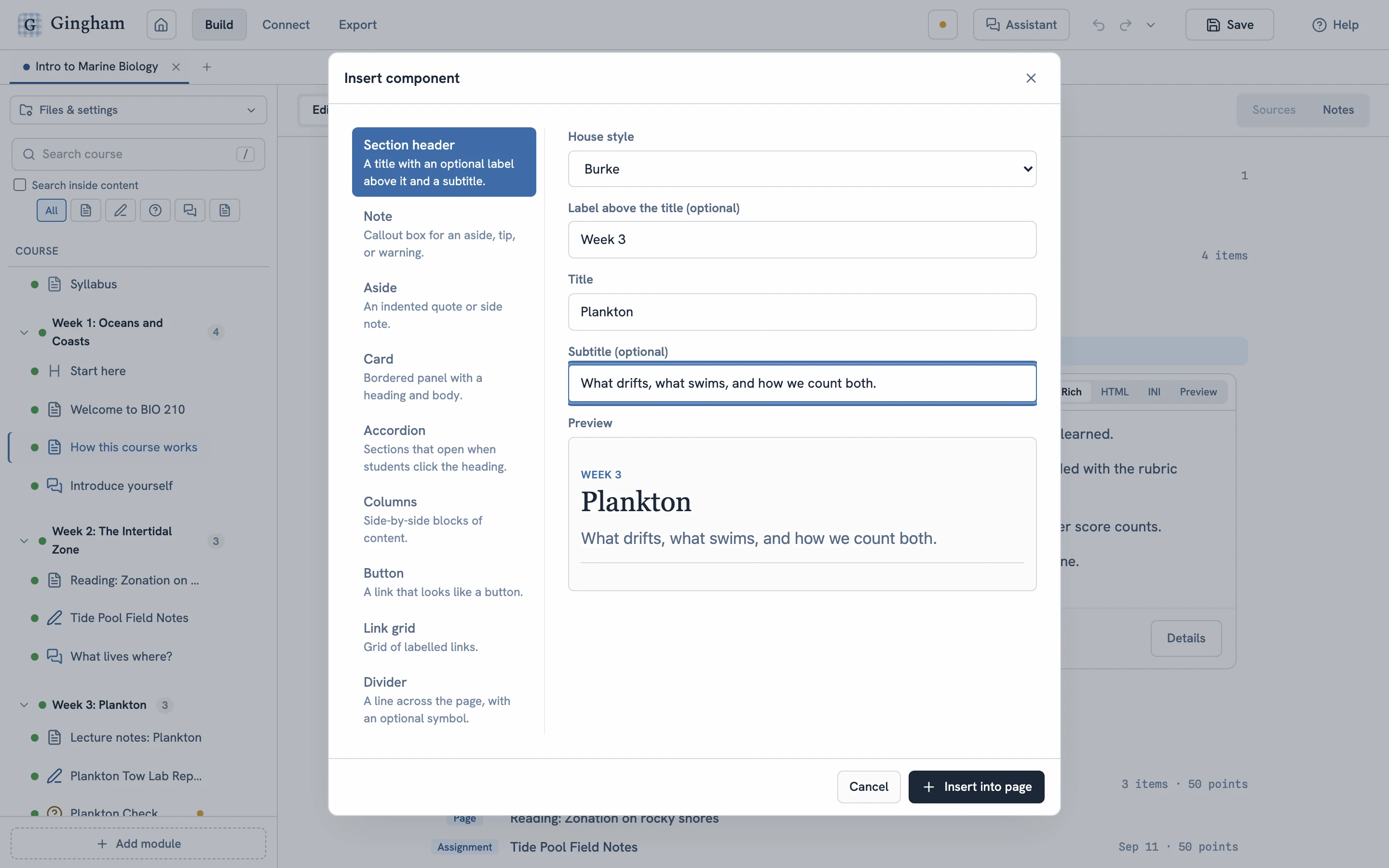
Insert component. Eighteen components in three house styles, each with a preview.
All twelve Classic Quiz question types, question groups and banks. Import questions from text or QTI, or write one quiz on its own and download it as QTI.
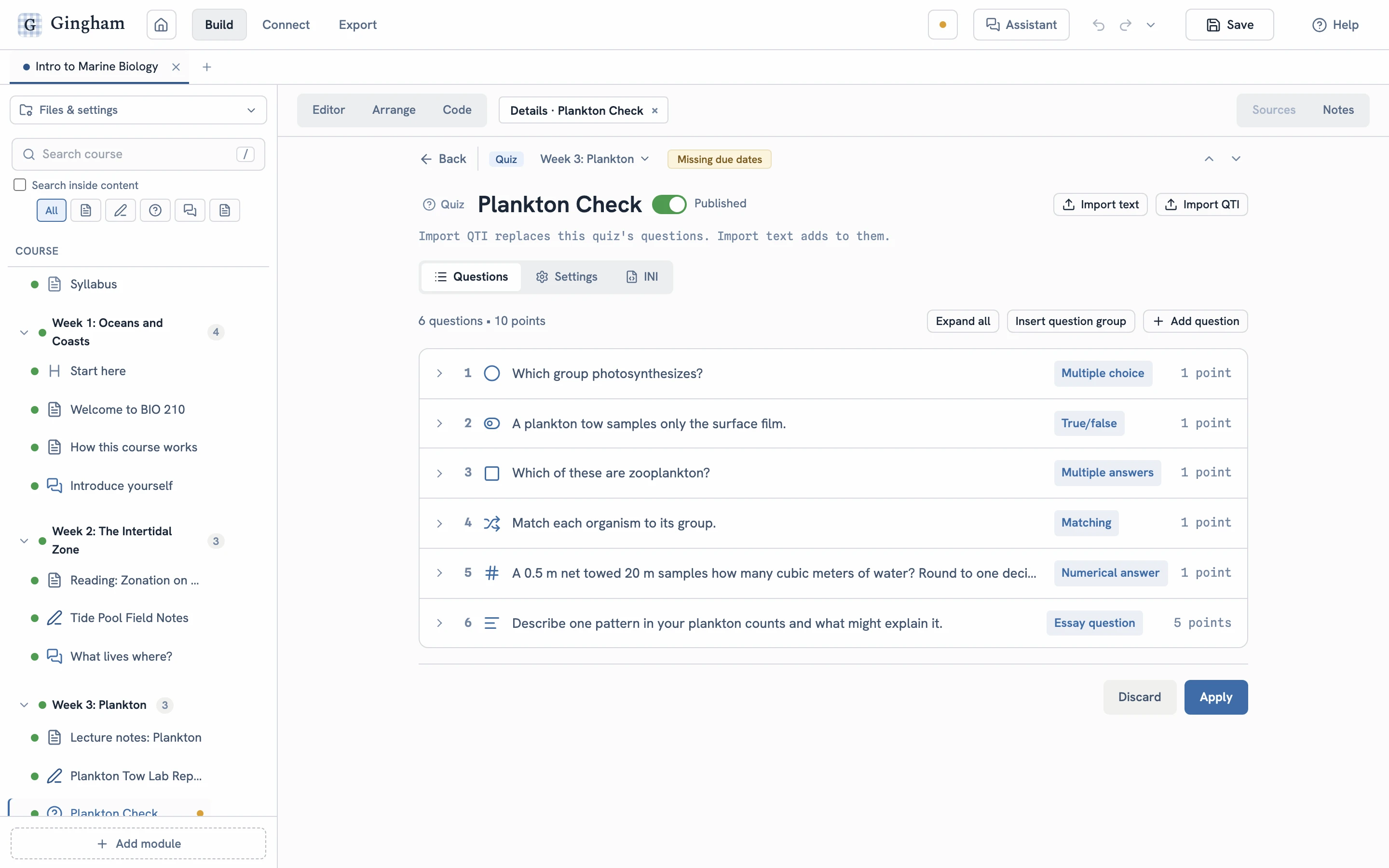
A quiz in its own editor: every question, its type and its points.
Each item keeps its Canvas settings beside it: due date and points first, then the other settings in groups that say how many are set.
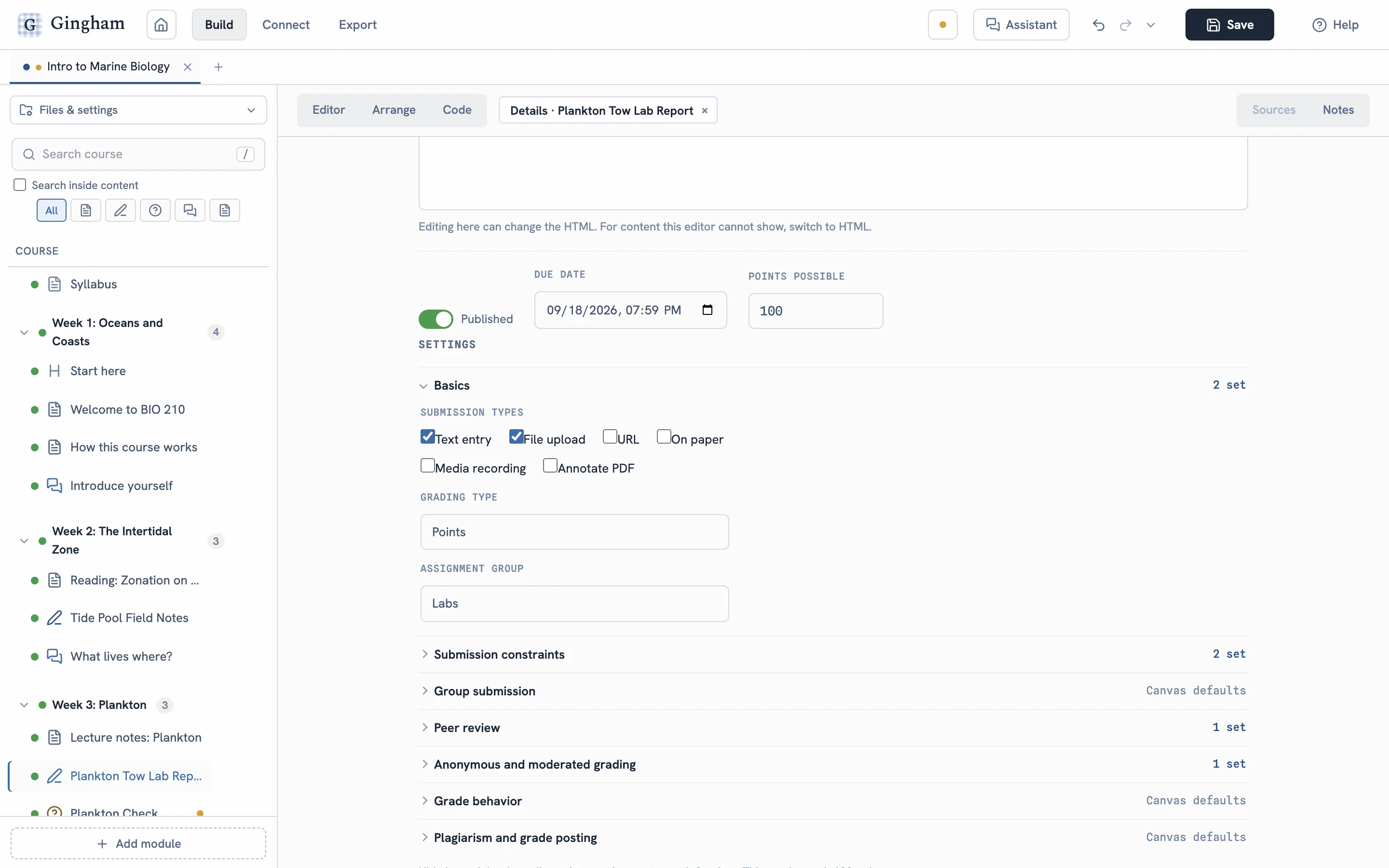
An assignment’s Details. Groups that use Canvas’s defaults say so.
Sort every item in one table by type, module, date or points, then publish, set due dates and points, or move several of them in one step.
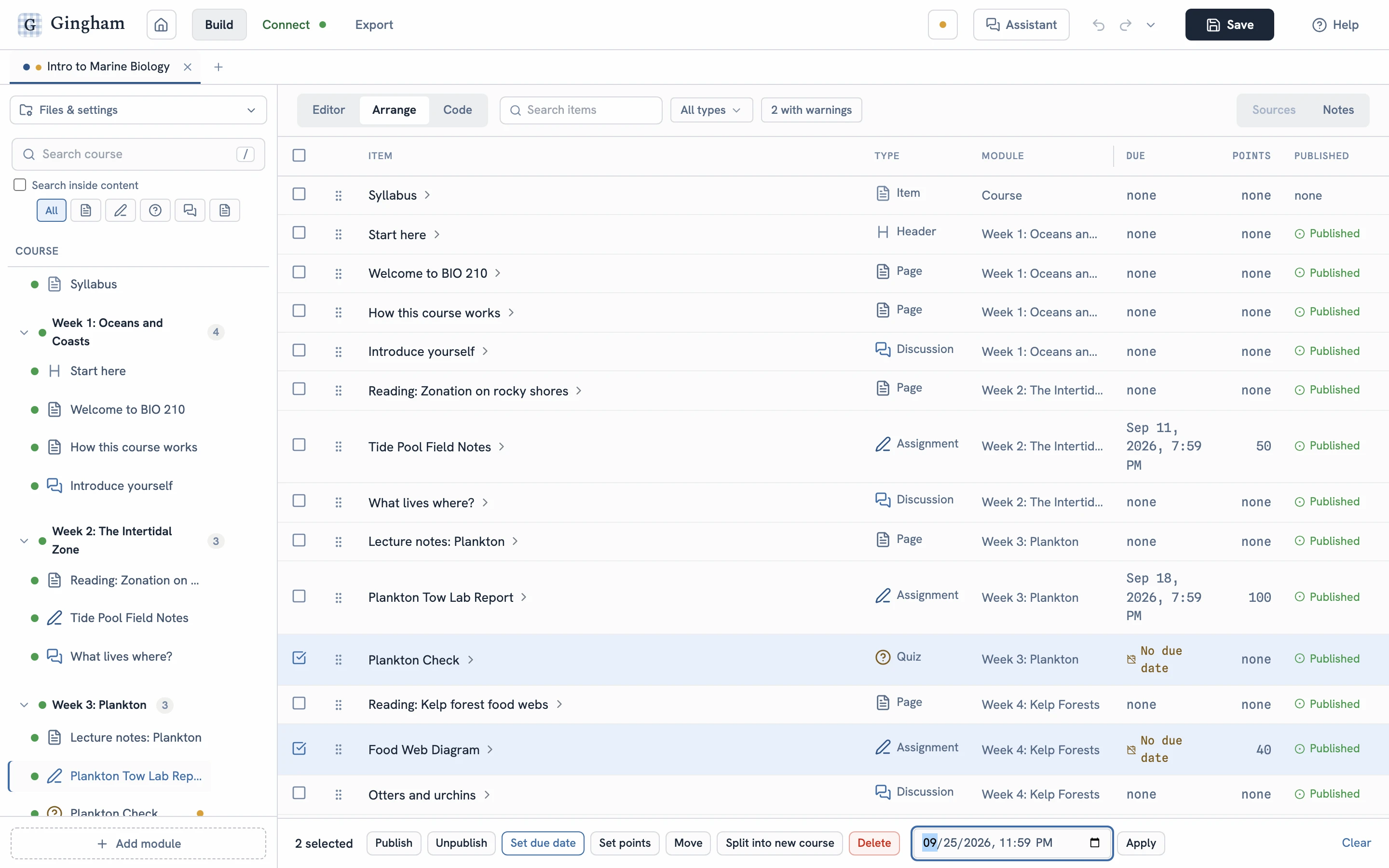
Arrange. Two items with no due date, selected and given one date together.
The whole course is also plain text.
Code shows the course as one text file: its settings, its modules, and every item with its body. Read it, search it, and edit it directly.
- Edit the text, then Apply it to the course. New sections become new items.
- Reconcile it against a baseline you set in Export to see what has changed.
- Download it as an .ini file for review, records, or version control.
[ITEM:res_assign_tow]type = assignmentmodule = Week 3: Planktontitle = Plankton Tow Lab Report---SETTINGS-START---allowed_extensions = pdf,docxpoints_possible = 100submission_types = online_text_entry,online_uploaddue_at = 2026-09-18T23:59:00Zworkflow_state = published---SETTINGS-END------CONTENT-START---<p>Write a 1,000-word lab report on your plankton tow:method, counts, and what the sample says about the water.</p>---CONTENT-END---Checks looks for errors and warnings as you work.
Each result is an error or a warning. An error in the package stops the course download until you fix it.
Links that go nowhere
Page links to missing files or items, and module entries that no longer point at anything.
Settings Canvas will refuse
Combinations Canvas rejects on import, such as impossible attempt counts, time limits, or grading schemes.
Graded work with gaps
No due date, graded but still a draft, or a rubric that is not attached to anything.
Files no item uses
Uploads that nothing in the course links to, listed so you can keep or remove them.
Media that breaks on import
Video embedded from another course, which will not play in this one, and media files large enough to crowd a course's storage limit in Canvas.
Video without captions
Video and audio with no caption track, and caption files in a format Canvas will not keep.
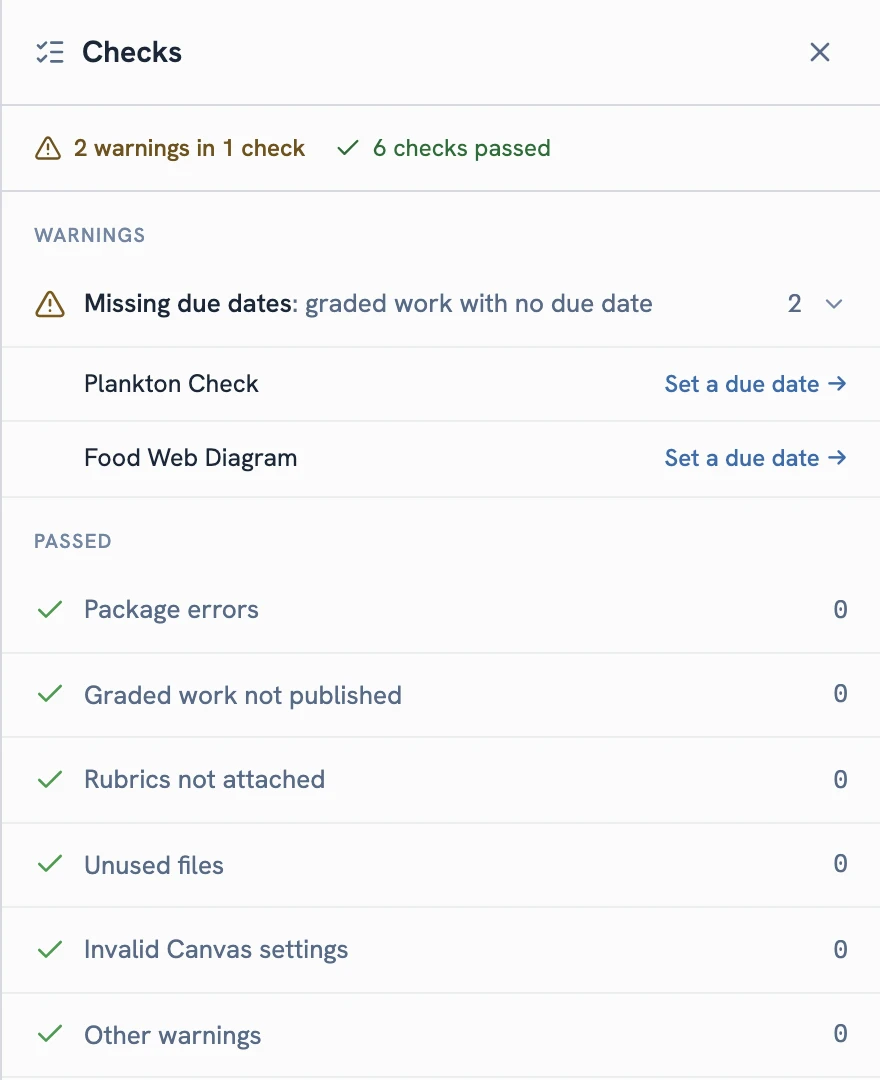
Each missing due date links to its item.
Compare with Canvas, then apply what you choose.
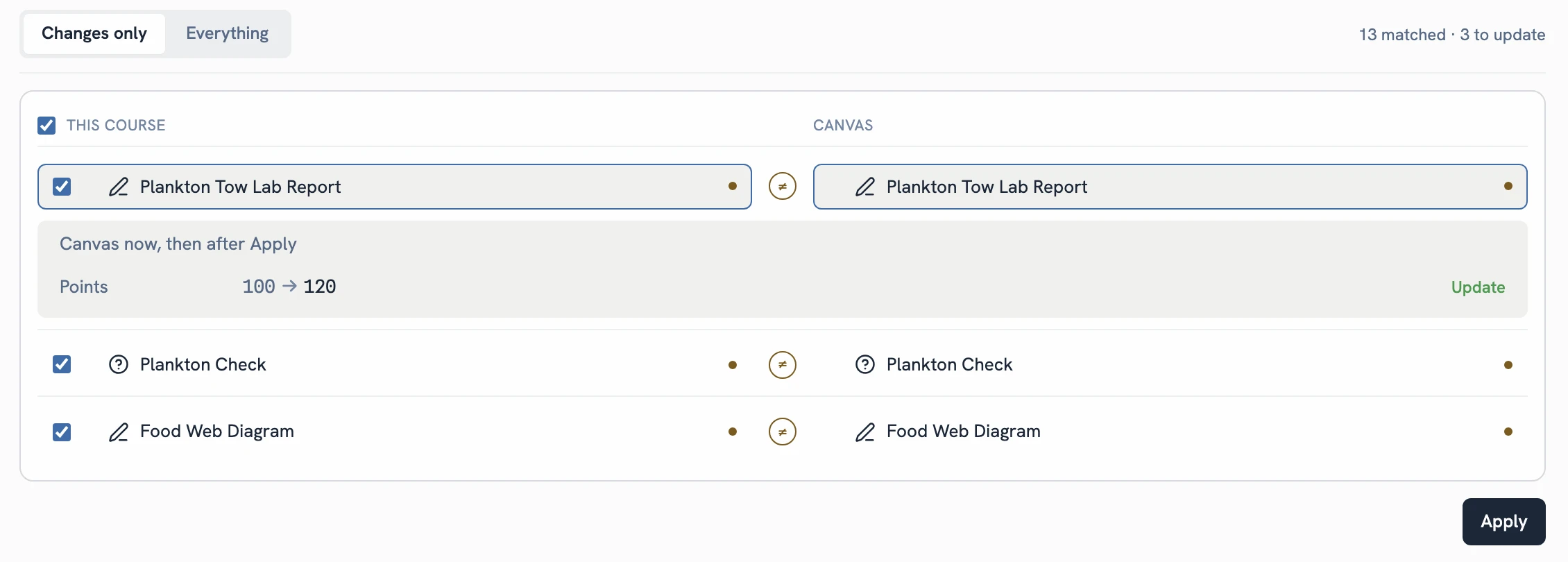
Link the course to its Canvas course and Gingham compares the two, item by item. You see the fields that will change, leave out anything you are not ready to send, and apply the rest.
Tie one Gingham course to one Canvas course. Unlinking changes nothing in Canvas.
Titles, publish state, due dates and points, plus page, quiz and discussion content when you ask for it.
Only the items you keep selected are sent. Removing a due date, unpublishing or lowering points asks you to confirm first.
- Undo and redo, with each step named, so you can step back through a session.
- Before an Apply to Canvas, a copy from Canvas, a publish, a replace or a restore, Gingham saves a version of the course on your device. It keeps the most recent ones.
- Replacing a Canvas course checks it for student work and asks you to confirm. Gingham saves a copy of the Canvas course to Versions first, and deletes nothing if it cannot.
Working without a connection? Export downloads the course as a Canvas package, checked for errors and warnings before it downloads.
Build courses from the AI you already use.
Gingham's course engine is also an MCP server. Connect Claude or another MCP client, and it can build, check and update Canvas courses with the same engine and Checks as the app.
The Gingham connector
Add this address as a custom connector in Claude, or as a remote MCP server in Codex and other clients. You approve the client in Gingham, and it works on the courses saved to your account.
https://mcp.ginghamlearning.com/mcp
Things to ask for
- Build a ten-week course from this syllabus and run Checks on it.
- Compare my course with its Canvas course and list what Apply would change.
- Move every due date in Week 3 two days later.
- Lay out the welcome page with an accordion and a callout.
Tested with Claude, Claude Code and Codex. The connector is turned on for each account or organization, so mention it when you request access.
The assistant, inside Gingham
The assistant works on the course you have open. It drafts changes, and each one waits for you to review it and click Apply.
- Reads, searches and explains the course.
- Runs Checks and explains what they found.
- Answers questions from Gingham's help.
- Drafts edits to the course, and to titles, dates, points and publish state in Canvas.
It stays off until it is turned on for your account or organization, and it explains what it sends before you start.
Built for course content.
Gingham works on the course itself. It does not read grades, student submissions or class rosters. Before it deletes assignments, quizzes or discussions in Canvas, it checks for student work so it can warn you.
How your data movesYour Canvas token stays on the server
It is stored encrypted on Gingham's server, and your browser does not keep a copy.
No third-party trackers
The app loads no third-party analytics or advertising, and serves its own fonts.
AI is off by default
The assistant and the connector are off until they are turned on for your account or organization.
Yours to take or delete
Download your account data, or delete your account, in Account settings. Courses download as packages.
Gingham is invite-only right now.
Email us to ask for an account. Say which Canvas you use and what you want to build.